What's New in Jumper - October 25, 2026
Jumper v2026.10.25 is now available for macOS (Apple silicon and Intel) and Windows. On macOS, update through Auto-check for updates in the Jumper launcher. On Windows, download and run the latest installer.
Search the timeline you’re editing
Jumper can now search the timeline open in your editor, not just your media. Click the timeline icon next to Visuals and Speech to switch from your Analysis folder to the sequence open in Premiere Pro, DaVinci Resolve or Avid. In Final Cut Pro, drag a project from the browser into the panel.
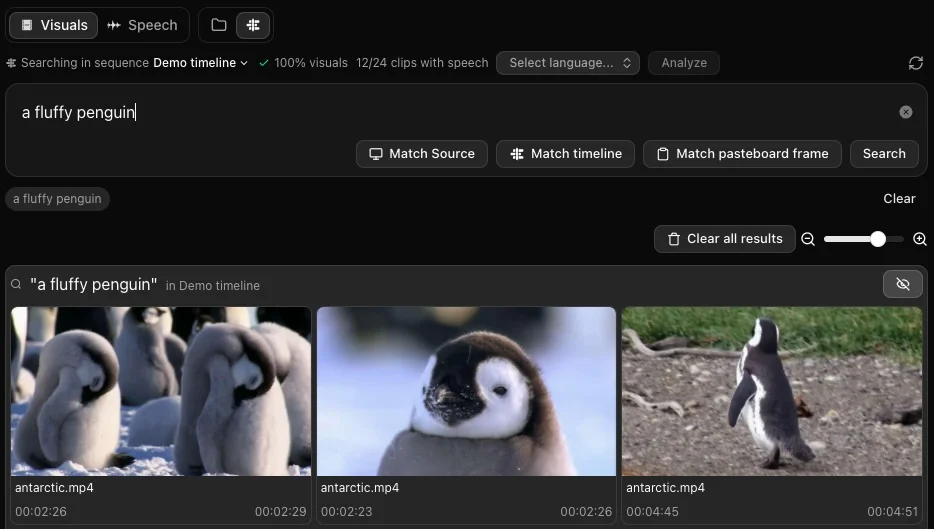
Jumper shows how much of the timeline is analyzed and how many clips have speech. Analyze fills in the rest, and only analyzes the parts of each clip the timeline actually uses. Media you’ve already analyzed is reused, and clips without a transcript can be transcribed in the same pass.
Visual and speech matches show where they sit on the timeline. Click one and the playhead moves there. You can also search by a frame from the Source or Timeline monitor.
It’s a quick way to find where a shot or line ended up in a long cut, or to check whether something is already in it before you add it again.
Drag results onto the timeline
Visual and speech results can now be dragged straight onto the timeline in Premiere Pro, DaVinci Resolve, Avid and Final Cut Pro. Only the matched range is placed, not the whole clip. In Avid, the range is edited in at the position indicator using your selected insertion mode, just like Add to timeline.
Transcripts in Avid, and as captions
In Avid, the Script panel menu has a new Send transcript to Avid item. It gives the clip Jumper’s transcript as a native Media Composer transcript, so it shows up in Avid’s Transcript Tool and PhraseFind AI with the language, the speakers and the time of each word. Jumper updates its Media Composer plugin on launch to allow this.
You can also export transcripts as SRT subtitles for Premiere Pro and Resolve caption tracks, or as Avid SubCap captions for Media Composer’s SubCap effect. Captions follow your Script Editor edits, so hidden lines stay out. The Script Editor can now export transcripts for many files at once, too.
Behind this, new transcripts keep the timing of every word for most languages. That’s what gives Avid its word times, and it lets AI agents cut at an exact word instead of estimating.
People
You can now delete a face collection, or a single person and all their faces. Jump from any face in the People tab to the frame it was found in. Give each named person a profile picture, shown next to their name in search menus, by picking one of their faces or refreshing for another.
Face grouping can be chosen when you start an analysis. The new Auto default uses Balanced for a new collection and keeps an existing collection’s grouping when you add more files to it.
For AI agents
- Agents can read word-level timings with transcript ranges, and see named speakers instead of SPEAKER_00-style IDs. Summary Analysis uses named speakers too.
- Agents can export SRT and Avid SubCap captions.
- Analysis started by an agent puts far less load on Analysis folders on a NAS.
- Music with embedded album art now lands on audio tracks in agent-built timelines, and OTIO import and export handle mixed frame rates in Resolve.
- Bionic works alongside LM Studio for local thumbnail descriptions.
Also in this release
Speech Analysis now transcribes every audio track of multi-track files such as MXF and multi-track MOV. Batch actions can apply to just the visual results you select. And transcript PDF exports now show Japanese, Chinese, Korean, Russian, Greek and other non-Latin text.
For the complete list, see the Jumper release notes.
Update Jumper, open a cut you’re working on, and try searching it. Tell us how it goes on Discord.